
In-game chat
What the in-game chat is#
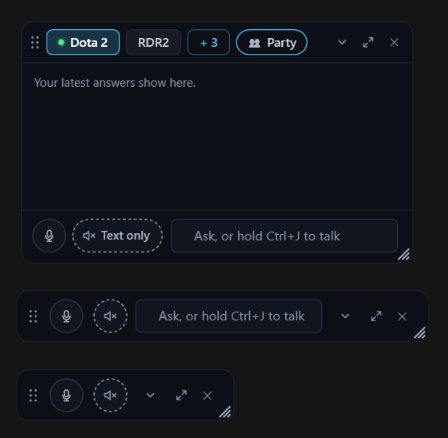
The in-game chat is a small strip that stays over your game after you close the overlay with Ctrl+Tab (default — change it in Settings → Hotkeys): the last two questions and answers of the chat you're in, a mic button, a speaker button and a text box. It's a window onto your current chat, so answers that arrive while the overlay is closed show up there, and your hotkeys, push-to-talk and Hey Wingman work as before. Your chats sit along the top, and each answer has the usual read aloud, copy, share and thumbs buttons. Click the text box to type; Enter sends and puts your keys straight back in the game, and Esc does too without sending. It shows when you close the overlay or start a game with it closed, and goes away when you open the overlay or the game closes. To get the full chat back, click ⤢ next to the ✕ or press Ctrl+Tab. It's on by default; the "Over the game" switch in the chat header turns it on or off.
Its three looks: full, folded and compact#
The in-game chat has three looks. Full: your chats along the top, the latest answers, and the mic, the speaker and the text box at the bottom. Folded (the arrow next to ⤢): one row with the mic, the speaker and the text box. Compact: drag the folded row's edge in until the text box goes, and only the mic and the speaker are left - small enough to keep on screen while you play, and they still show when WingHUD is listening, thinking or speaking. In every look, ⤢ next to the ✕ opens the full overlay, the same as Ctrl+Tab, and the ✕ turns the in-game chat off.
Turn the in-game chat on or off#
The chat header shows which mode WingHUD is in - OVERLAY MODE or WINDOW MODE - with "Over the game" and a switch next to it: that switch turns the in-game chat on or off. The strip appears once you close the overlay with Ctrl+Tab, so turning it on with the overlay open shows a short note saying so. The same switch is in Settings → Appearance, and you can give it a key: "In-game chat — show/hide" in Settings → Hotkeys. The ✕ on the strip turns it off too, and a short note says where to turn it back on. The in-game chat only works in Overlay mode: in Window mode "Over the game" is dimmed - hover it to see why, with a "Back to overlay" link - and your choice comes back as soon as you return to the overlay. The first time a game is detected with the overlay open, a tip under the switch points it out.
Move and resize it#
Drag the in-game chat by its top row (the one with your chats), and resize it from any edge or the bottom-right corner. It can be between 300 × 180 and 600 pixels wide by 60 % of your screen's height, and it snaps to the edges of the screen when you drag it close. WingHUD remembers where you put it for each monitor and resolution; by default it sits at the right edge of the game's screen, halfway down. "Return widgets" in the widget pane puts it back at that default spot.
Fold it to one row#
Click the arrow next to the ✕, or double-click the dots at the left of the top row, and the in-game chat folds to one row: the mic, the speaker and the text box, with its own ✕. Everything still works folded. With the speaker on Read aloud, answers are read to you and it stays folded; if the answer won't be read aloud (Text only, or your voice allowance is used up), sending your question unfolds it so you can read the answer. Answers you didn't hear, like a widget's or the party's, show as a number on the arrow; click the arrow or double-click the dots to unfold. Drag the folded row's left or right edge to resize it; narrow enough and only the mic and the speaker are left. WingHUD remembers whether it's folded and how wide. You can also set a hotkey: "Fold / unfold in-game chat" in Settings → Hotkeys.
Replies read aloud or as text: the speaker button#
The speaker button next to the mic, in the in-game chat and under the chat, decides how the wingman answers you. "Read aloud" reads every answer to you - typed or spoken questions, screenshots, area captures and Last Scene. "Text only" (dashed ring) shows the answers in the chat without reading them. It starts on Text only; using the mic - push-to-talk, a click on the mic, Open Mic or Voice Wingman - switches it to Read aloud, and it stays that way until you switch it off. Click it to switch any time; it's the same setting as "Read replies aloud" in Settings → Voice & audio, where "Turn on read-aloud when I use the mic" can be turned off. While an answer is being read, the button turns into Stop. The small speaker under each answer still reads that one answer.
Talking over an answer#
Start talking while an answer is being read - hold Ctrl+1 (default — change it in Settings → Hotkeys), click the mic, or say "Hey Wingman" - and WingHUD stops reading straight away and listens. Sending a typed message does the same, and Stop on the speaker button stops it without asking anything new. The interrupted answer stays in the chat as text and isn't read again.
When your voice allowance is used up#
When today's voice allowance is used up, the mic keeps working - asking by voice counts toward your chat allowance - and the answers arrive as text. The first time, WingHUD says so out loud and writes the same line in the chat, so you see it in the in-game chat too. The speaker button shows a small amber dot and tells you when voice replies come back; clicking it then only shows that note. The mic is dimmed only when your chat allowance is used up, because then WingHUD can't answer at all until it resets.